Skip to content

Need Support?

Discover Themes

Need Support?

Discover Themes

Need Support?

Discover Themes

Getting Started

7
  • Theme Updates
  • Installing Required Plugins
  • Install Using FTP
  • Theme Installation & Activation
  • What We Offer (Downloaded Packages)
  • WordPress Installation
  • Server Requirements

Site Setup

4
  • Turn on Coming Soon / Maintenance Mode (Elementor)
  • Adding Coustom 404 Page
  • Customizing Your Menu
  • Adding a Favicon to your Site

Theme Options

16
  • Account Page 
  • Shop Page
  • Checkout Page
  •  Cart Page 
  •  AJAX Cart Sidebar
  • Single Product
  • Product Archive
  • Content Management
  • SEO Management
  • Cache Management
  • Back To Top
  • Typography & Custom Fonts
  • Back To Top (Scroll to Top Button)
  • Cursor / Mouse Movement Animation
  • Change Global Color
  • Enable Dark or Light Mode in Rakmyat Themes

Theme Builder

7
  • Single Product
  • Product Archive
  • Mega Menu 
  • Adding Coustom 404 Page
  • Template Builder
  • Footer 
  • Header Template

Portfolio

4
  • Creating a Single Portfolio Item
  • Creating a Portfolio Archive Page
  • Portfolio Display Name
  • Change Portfolio Slug

Services

4
  • Services Display Name
  •  Creating a Single Service
  •  Creating a Services Archive Page
  • Change Services Slug

WooCommerce Shop

7
  • Account Page 
  • Shop Page
  • Checkout Page
  •  Cart Page 
  •  AJAX Cart Sidebar
  • Single Product
  • Product Archive

How to

5
  • How to Give Access to Your WordPress Website
  • Change Global Color
  • Enable Dark or Light Mode in Rakmyat Themes
  • Adding Coustom 404 Page
  • Turn on Coming Soon / Maintenance Mode (Elementor)

Troubleshooting

5
  • Elementor Not Loading – Troubleshooting Guide
  • Demo Import Failed to Import in WordPress Theme
  • How to Fix the “Critical Error on Your Website”
  • WPML Not Detecting Custom Post Types
  • System Status

Demo Import

4
  • Demo Import Failed to Import in WordPress Theme
  • Manual Demo Import (OCDI + Elementor)
  • Importing Demo Locally from Theme Folder
  • Importing Demo (Default Method via Server HTTP Request)

Full Site Editing

9
  • Single Product
  • Product Archive
  • Adding Coustom 404 Page
  •  Creating a Services Archive Page
  •  Creating a Single Service
  • Creating a Portfolio Archive Page
  • Creating a Single Portfolio Item
  • Footer 
  • Header Template
View Categories
  • Home
  • Docs
  • Theme Options
  • Shop Page

Shop Page

2 min read

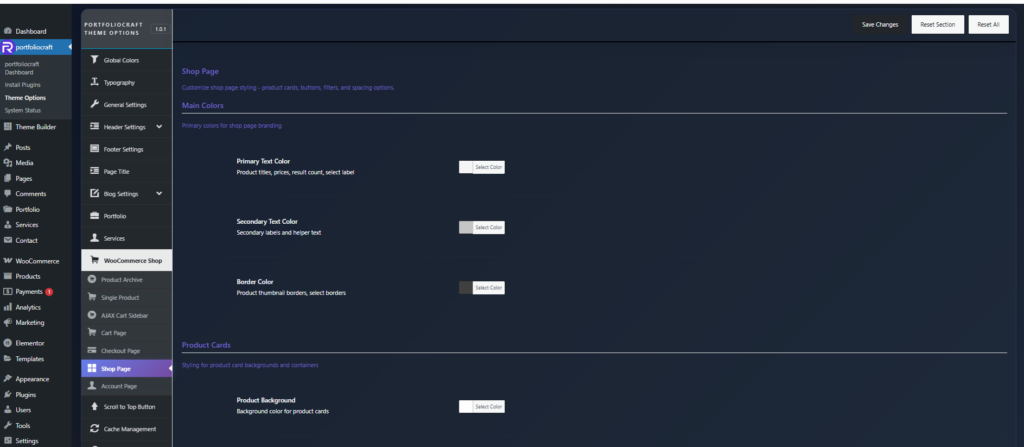
Main colors

These define the overall visual language of the shop.

  • Primary Text Color
    Used for key elements like product titles, prices, result count (“Showing X–Y of Z results”), and select labels.​
  • Secondary Text Color
    Used for supporting labels, helper text, and less important information.
  • Border Color
    Applied to product thumbnail borders and select/dropdown borders to separate elements clearly.​

Product cards #

Style the product card container and image area.

  • Product Background
    Background color of the entire product card (title, price, button, etc.).​
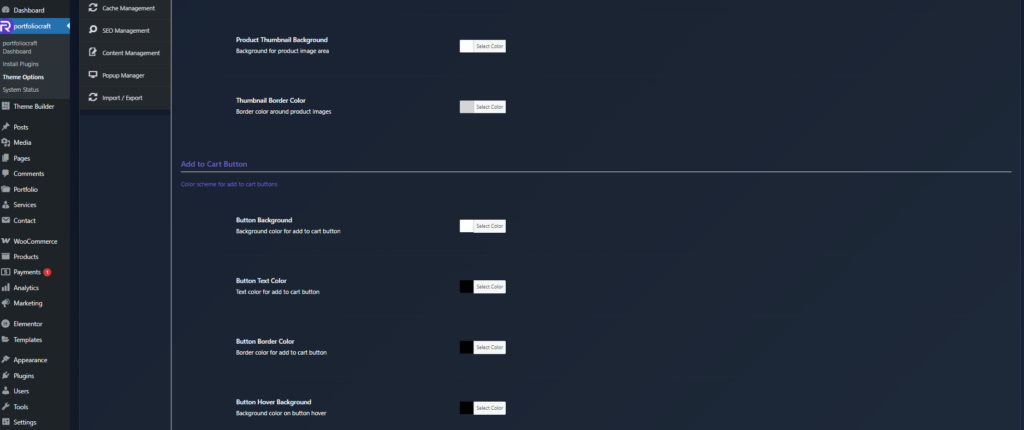
  • Product Thumbnail Background
    Background of the image area only, useful for giving product photos a neutral or branded backdrop.
  • Thumbnail Border Color
    Border color around product images, helping them stand out against the card or page background.​

Add to cart button #

Control the appearance and hover state of the add to cart button on product cards.

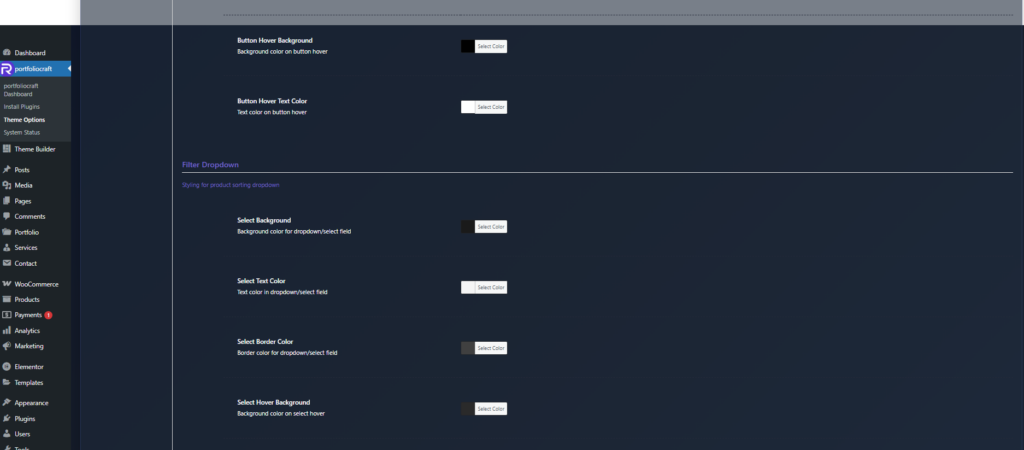
  • Button Background
    Normal background color of the add to cart button.​
  • Button Text Color
    Color of the icon/text on the button.
  • Button Border Color
    Outline/border color; set to match background for solid buttons or contrast for outlined style.
  • Button Hover Background
    Background color when hovering over the button.
  • Button Hover Text Color
    Text/icon color on hover, ensuring readability against the hover background.​

Filter dropdown (sorting) #

These options style the “Sort by” / product sorting select dropdown.

  • Select Background
    Background color for the dropdown/select field.​
  • Select Text Color
    Text color of the selected option and options list.
  • Select Border Color
    Border color of the select element.
  • Select Hover Background
    Background color when hovering over the select.
  • Select Hover Text Color
    Text color while hovered, keeping the control accessible and clear.​

Spacing & sizing #

Adjust spacing, card gaps, and roundness.

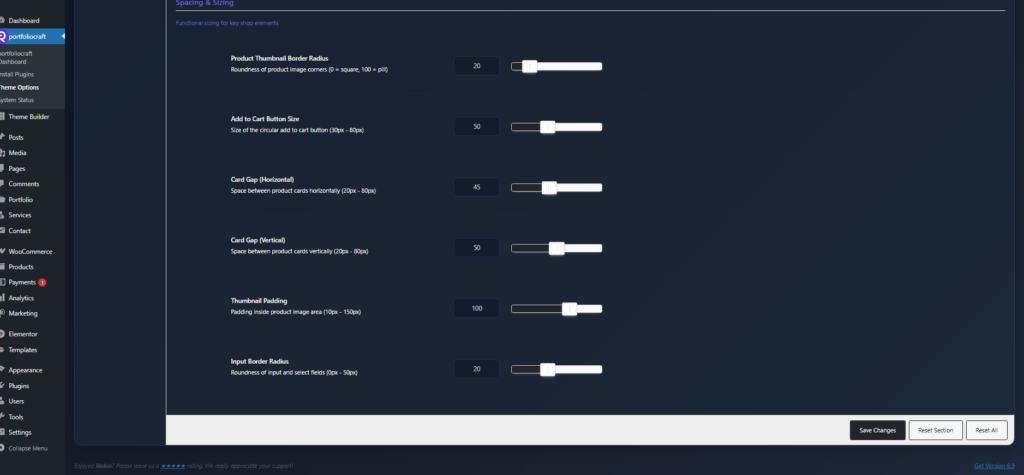
  • Product Thumbnail Border Radius
    Roundness of product image corners:
    • 0 = square corners
    • 100 = fully rounded/pill‑style corners.​
  • Add to Cart Button Size
    Diameter of the circular add to cart button (30–80px). Larger sizes are more prominent and easier to tap.
  • Card Gap (Horizontal)
    Horizontal space between product cards in the grid (20–80px).
  • Card Gap (Vertical)
    Vertical space between rows of product cards (20–80px).​
  • Thumbnail Padding
    Inner padding around the product image area (10–150px), controlling how much white space appears around images.
  • Input Border Radius
    Corner roundness for inputs and select fields (0–50px), aligning filters and dropdowns with the rest of the design.​

With these options, the Shop Page panel lets you build a consistent, branded product grid with clear buttons and filters, without writing custom CSS.
Updated on December 20, 2025

What are your Feelings

  • Happy
  • Normal
  • Sad

Share This Article :

  • Facebook
  • X
  • LinkedIn
  • Pinterest
Checkout PageAccount Page 

Leave a Comment Cancel Reply

Your email address will not be published. Required fields are marked *

Table of Contents
  • Product cards
  • Add to cart button
  • Filter dropdown (sorting)
  • Spacing & sizing

We design modern, performance‑focused WordPress themes that give you full control over your website – from visual identity to conversion‑driven layouts.

Helpful resources

  • Getting Started
  • How to
  • Site Setup
  • Theme Options
  • Theme Builder
  • Demo Import

Need help?

Our support team is here to assist with setup, customization questions, and technical issues. Open a support ticket any time and we’ll get back to you as soon as possible

Contact Us

Copyright © 2025 Rakmyat All Rights Reserved.