
Mega Menu in Rakmyat lets you display a full Elementor layout when the user hovers a specific menu item.
1. Create the Mega Menu template #
- Log in to WordPress admin.
- Go to Rakmyat Dashboard → Templates → Add New Template.
- Enter a title, for example “Main Mega Menu”.
- Click Edit with Elementor and design the content you want to show in the mega dropdown:
- Columns with links, images, icons, or featured posts.
- Any Elementor widgets you need.
- Click Publish
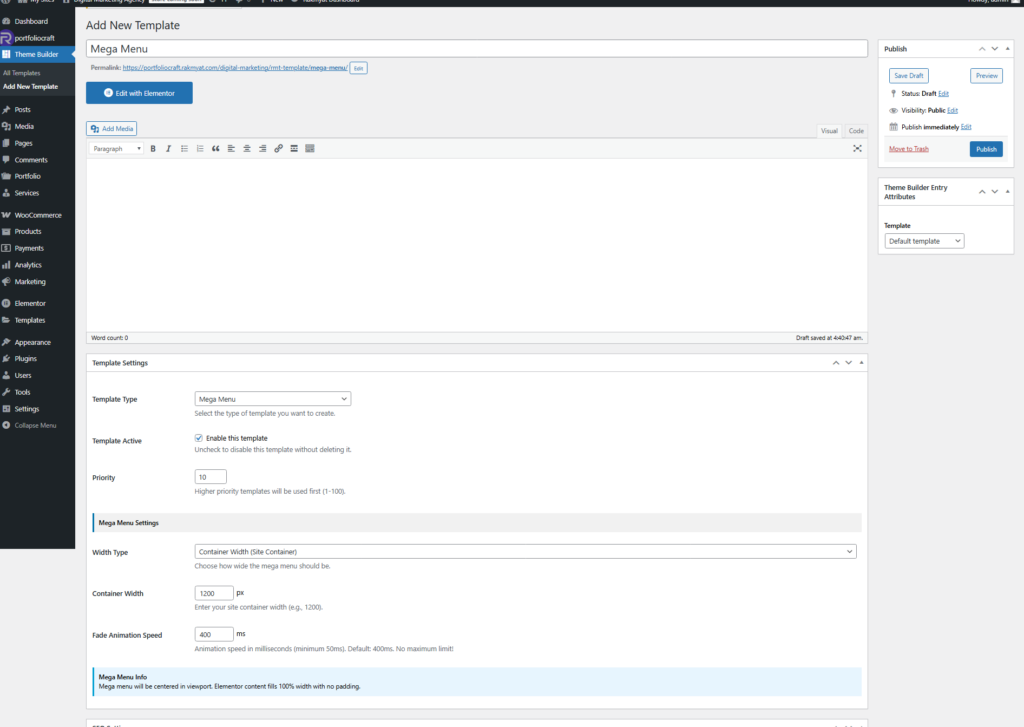
Set template type and options #
In the same template edit screen:
- Open Template Settings.
- Set Template Type to Mega Menu.
- Enable Template Active.
- Set Priority (1–100) if you plan to have multiple mega menus.
Under Mega Menu Settings:
- Width Type
- Full Width (100% Viewport) – stretches from edge to edge.
- Container Width – uses your site container width (set the width in pixels).
- Custom Width – exact pixel width.
- Content Width – fits content only.
- Container Width (px)
- If you chose Container Width, enter your container size (for example 1200).
- Fade Animation Speed (ms)
- Animation speed of the mega menu open/close (default 400 ms).
Click Update to save
2. Assign the Mega Menu template to a menu item #
- Go to Appearance → Menus.
- Select your main menu (for example “Primary Menu”).
- Expand the menu item that should open the mega menu (for example “Services” or “About”).
- You will see extra options:
- Enable Mega Menu – check this box.
- Mega Menu Template – select the Elementor template you created (for example “Main Mega Menu”).
- Click Save Menu.
Now, when the user hovers or clicks that menu item (depending on your header design), the mega menu template will appear as a large dropdown

3. How it works in the header #
- The header template (built with Elementor and Template Builder) already uses the Nav Menu widget.
- When Enable Mega Menu is turned on for a menu item and a Mega Menu Template is selected, the theme replaces the normal dropdown of that item with the Elementor layout from your mega menu template.
- Width and animation are controlled by the Mega Menu Settings you configured earlier.
4. Tips and troubleshooting #
- If the mega menu does not appear:
- Confirm the template has Template Type = Mega Menu and Template Active = Enabled.
- Check that you selected the correct template in the menu item and saved the menu.
- Clear any cache and refresh the page.
- Keep mega menus simple and structured:
- Use headings for columns (for example “Services”, “Resources”, “Company”).
- Avoid placing very heavy content (too many images or sliders) to keep it fast.
With these steps, you can build flexible mega menus using full Elementor layouts and attach them to any top‑level menu item in Rakmyat themes.


