
The footer in Rakmyat themes is managed with a Template Builder layout plus Theme Options and optional per‑page overrides.
1. Create the footer template #
- Log in to WordPress admin.
- Go to Rakmyat Dashboard → Templates (or Templates → All).
- Click Add New Template.
- Enter a title, for example “Footer”.
- Click Edit with Elementor and design your footer:
- Widgets (menus, contact info, social icons, copyright, etc.).
- Columns and backgrounds.
- Click Publish
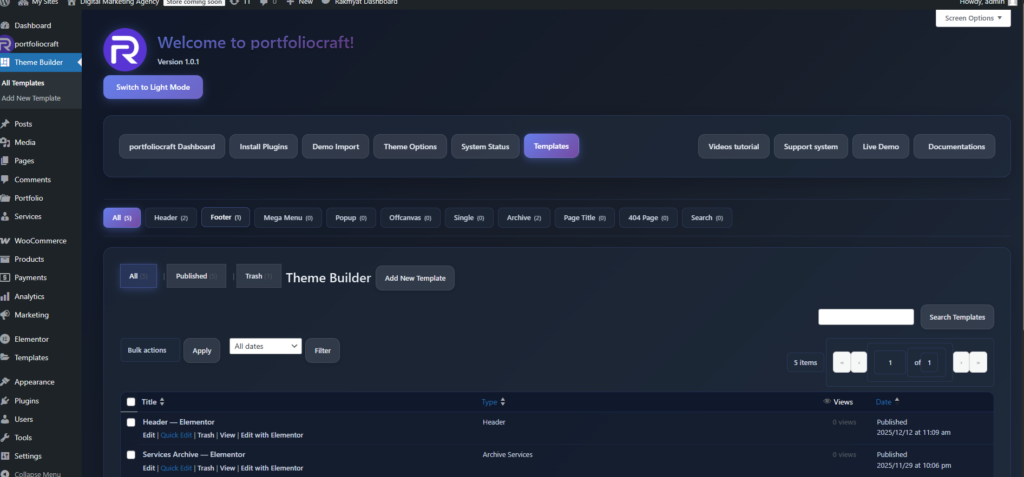
In the template edit screen:
- Open Template Settings.
- Set Template Type to Footer.
- Enable Template Active.
- Set a Priority if you plan to have multiple footers.
- Click Update.

Now the footer template is ready to use
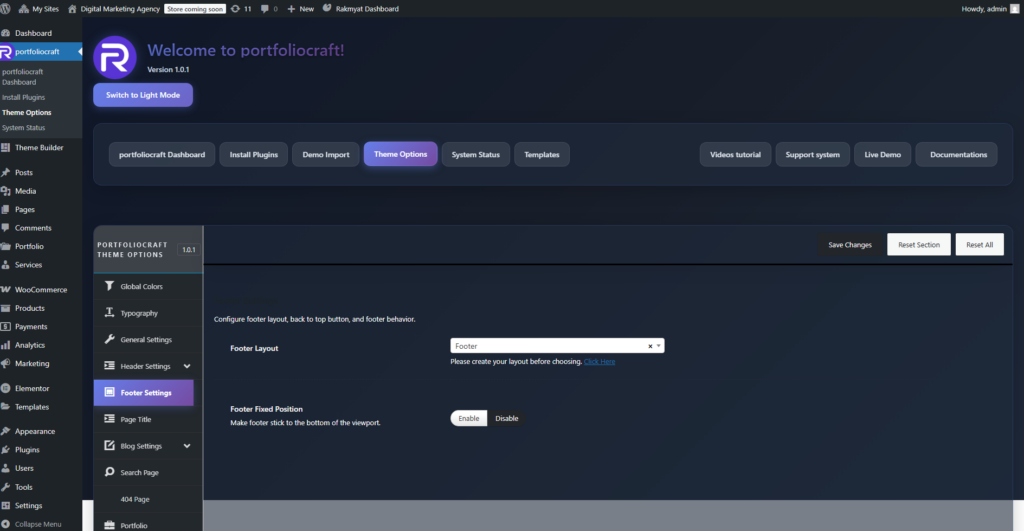
2. Assign the global footer in Theme Options #
- Go to Rakmyat Dashboard → Theme Options → Footer Settings.
- Under Footer Layout, choose the footer template you created (for example “Footer”).
- If you want the footer to stick to the bottom of the viewport, enable Footer Fixed Position; otherwise leave it disabled.
- Click Save Changes.
This footer will now appear on all pages that inherit the default footer.
3. Override footer per page (Page Options) #
You can change or hide the footer for specific pages.
- Edit the page: Pages → All Pages → Edit.
- Scroll to Page Options and open the Footer tab.
Options available:
- Footer Layout
- Inherit: use the global footer from Theme Options.
- Or select a specific footer template for this page only.
- Footer Display
- Show: display the footer on this page.
- Hide: remove the footer completely (useful for landing / coming‑soon pages).
- Footer Fixed
- Inherit: use the global setting.
- On: force fixed footer for this page.
- Off: disable fixed footer on this page.

After updating these options, click Update on the page.
4. Multiple footers and common uses #
You can create different footers, for example:
- Main site footer with full widgets.
- Minimal footer for landing pages.
- Alternate footer for specific language, category, or campaign.
Use:
- Theme Options → Footer Settings for the default footer.
- Page Options → Footer to choose a different footer or hide it on individual pages.
5. Troubleshooting #
If the footer does not appear or the wrong footer shows:
- Confirm the template has Template Type = Footer and Template Active = Enabled.
- Check Theme Options → Footer Settings → Footer Layout is set to the correct footer.
- On the page, verify Page Options → Footer Layout is either Inherit or the footer you want, and Footer Display = Show.
- Clear cache (plugins and browser) and reload the page.
This setup gives you full control over the footer design and behavior globally and per page.


