
This option is controlled from the Theme Options panel, in the Global Colors section.
1. Open Theme Options #
- Log in to your WordPress admin dashboard.
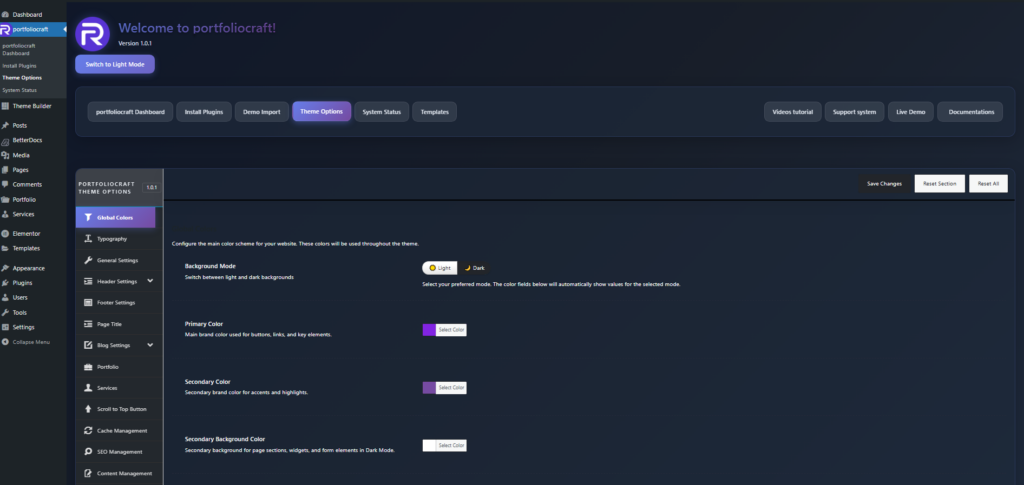
- Go to: Rakmyat Dashboard → Theme Options.
- From the left side, click on Global Colors.
2. Choose Background Mode #
At the top of the Global Colors panel you will see:
- Background Mode
Switch between light and dark backgrounds.
There are two choices:
- Light
- Dark
Select the mode you want to use for your site
3. Adjust Dark Mode Colors (Optional) #
When Dark mode is enabled, you can control all main colors for that mode:
- Primary Color: main brand color for buttons, links, and key elements.
- Secondary Color: accent color for highlights.
- Secondary Background Color: background for sections, widgets, and forms.
- Background Color: overall dark background color.
- Heading Text Color: titles and headings color.
- Body Text Color: normal text color.
- Meta Text Color: meta information (dates, categories, etc.).
- Border Color: borders, cards, inputs, and dividers.
Click “Select Color” next to each option, choose your color, then save.
4. Save Changes #
After selecting Light or Dark and adjusting colors:
- Click Save Changes at the top right of the Theme Options panel.
- Refresh your website front-end to see the new mode applied.
The selected mode will now be used across the entire theme.


