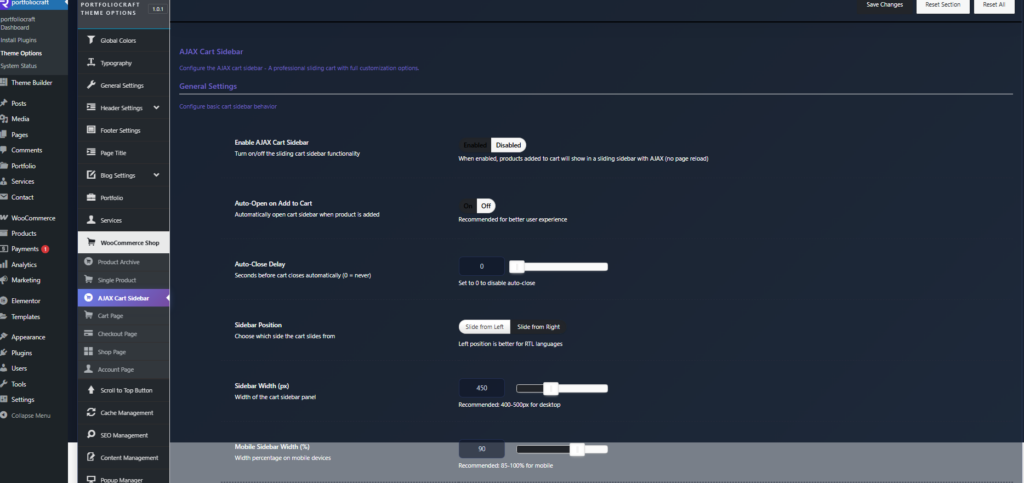
The AJAX Cart Sidebar options control a sliding, live‑updating cart panel that appears without reloading the page. It improves the shopping experience by letting users review and adjust their cart instantly from any page.
General settings #
- Enable AJAX Cart Sidebar
Turns the sliding cart panel on or off. When enabled, adding a product updates the cart via AJAX and opens it in the sidebar instead of redirecting to the cart page. - Auto-Open on Add to Cart
Automatically opens the cart sidebar when a product is added. Recommended so customers clearly see that the item has been added. - Auto-Close Delay
Time in seconds before the sidebar closes by itself.- Set to
0to never auto‑close and leave the cart open until the user closes it manually.
- Set to
- Sidebar Position
Choose where the cart slides from: - Sidebar Width (px)
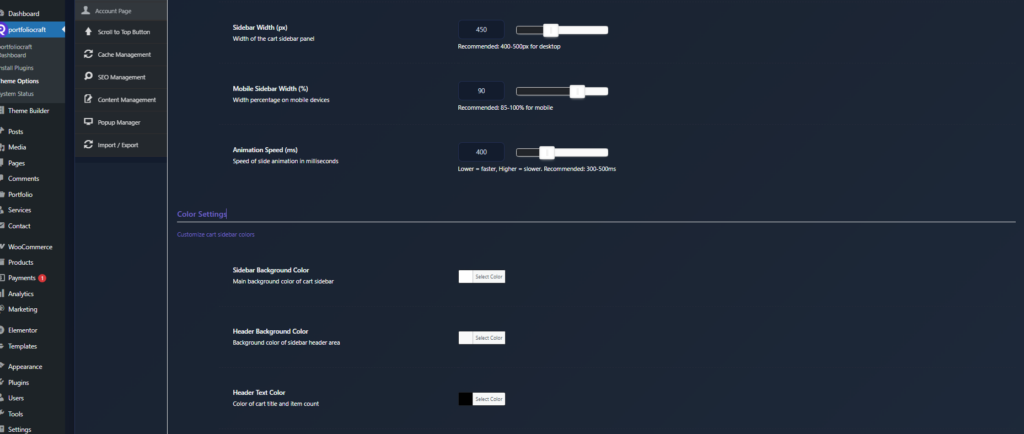
Fixed pixel width of the cart panel on desktop.- Recommended: 400–500px so product details are readable without covering the entire page.
- Mobile Sidebar Width (%)
Width as a percentage of the screen on mobile devices.- Recommended: 85–100% for a full‑screen or near full‑screen cart on phones.
- Animation Speed (ms)
Slide‑in/out animation speed in milliseconds.- Lower values (e.g. 300ms) feel snappier, higher values (e.g. 500ms) feel smoother.
Color settings #
These options let you fully style the sidebar to match your shop branding.
- Sidebar Background Color – Main background of the cart panel.
- Header Background Color – Background of the cart header (title area).
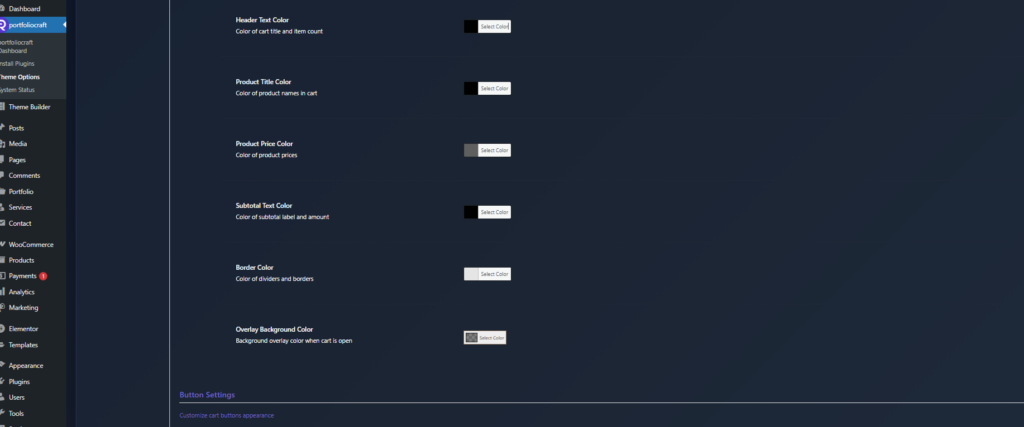
- Header Text Color – Color of cart title and item count.
- Product Title Color – Color of product names in the cart.
- Product Price Color – Color of prices in the cart.
- Subtotal Text Color – Color of subtotal label and amount.
- Border Color – Color of separators and borders inside the cart.
- Overlay Background Color – Color of the dark/transparent overlay behind the sidebar when it is open.
Button settings #
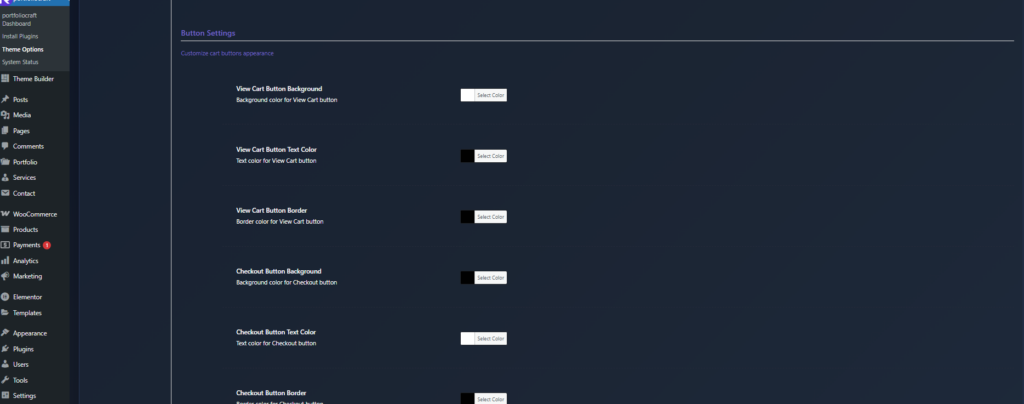
Configure the look of the main cart actions.
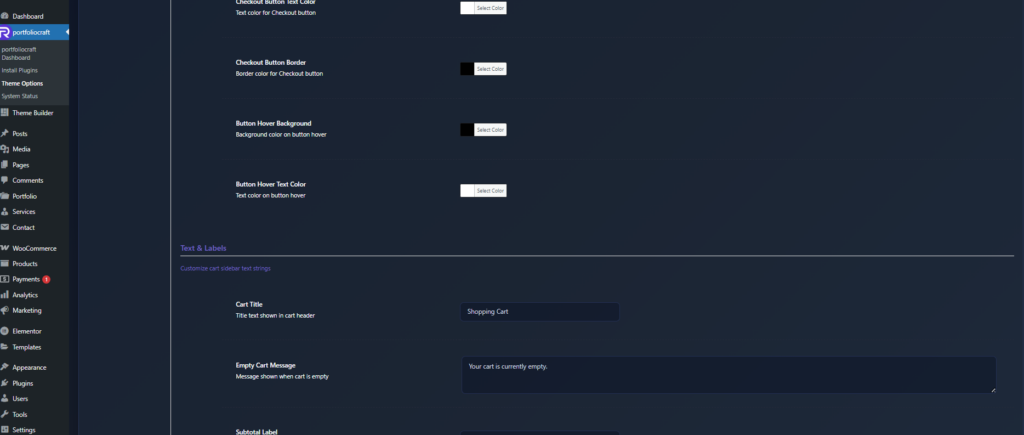
- View Cart Button Background / Text Color / Border
Colors for the View Cart button (normal state). - Checkout Button Background / Text Color / Border
Colors for the Checkout button (normal state). Usually styled as the primary call‑to‑action. - Button Hover Background / Text Color
Colors applied when hovering over View Cart and Checkout buttons, giving clear visual feedback.
Text & labels #
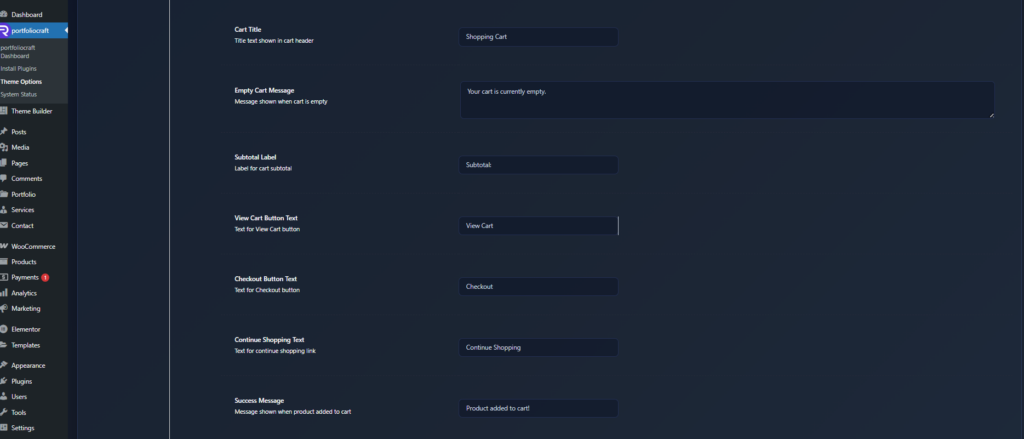
Customize all important text strings shown in the cart sidebar.
- Cart Title – Text in the header, e.g. “Your Cart” or “Shopping Bag”.
- Empty Cart Message – Message shown when the cart is empty, e.g. “Your cart is empty. Start adding products!”.
- Subtotal Label – Label before the subtotal amount, e.g. “Subtotal” or “Cart total”.
- View Cart Button Text – Text for the View Cart button.
- Checkout Button Text – Text for the Checkout button.
- Continue Shopping Text – Link text that closes the cart and returns to browsing.
- Success Message – Toast/inline message when a product is successfully added, e.g. “Product added to cart”.
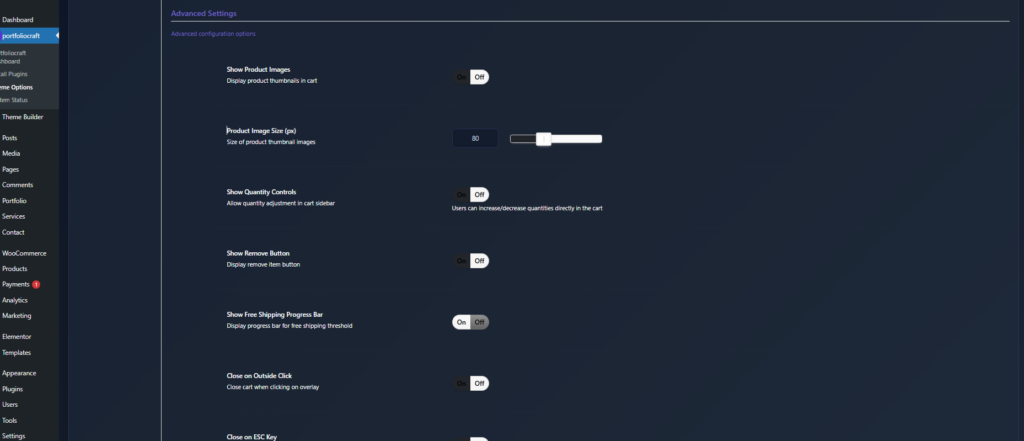
Advanced settings #
- Show Product Images
Displays product thumbnails in the cart list for better visual recognition. - Product Image Size (px)
Pixel size for those thumbnails (e.g. 60–100px). - Show Quantity Controls
Allows customers to increase/decrease quantities directly in the sidebar without leaving the page. - Show Remove Button
Adds a remove (X) button for each item so users can quickly delete products from the cart. - Show Free Shipping Progress Bar
Displays a progress bar indicating how much more the customer needs to spend to reach free shipping, which can increase average order value. - Close on Outside Click
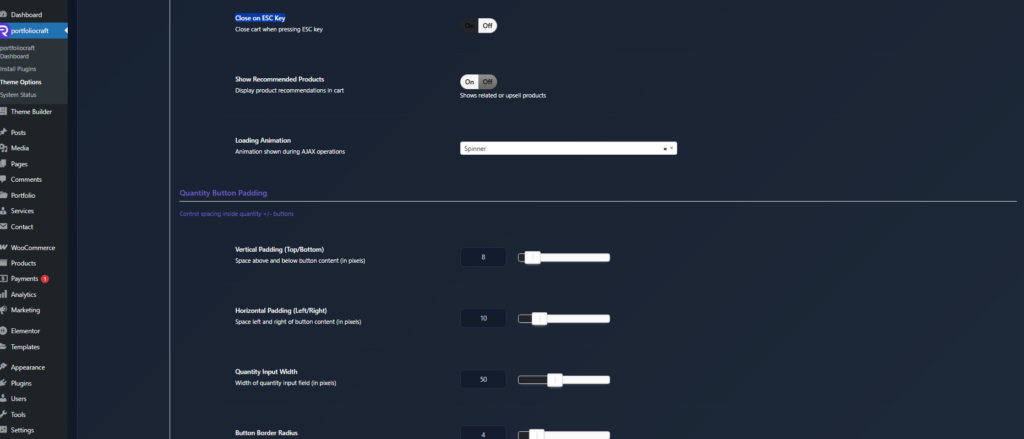
Closes the cart when the user clicks on the overlay/background area. - Close on ESC Key
Allows closing the cart by pressing the ESC key. - Show Recommended Products
Displays related or upsell products in the cart to encourage additional purchases. - Loading Animation
Visual indicator during AJAX operations:- Spinner
- Dots
- Pulse
- None
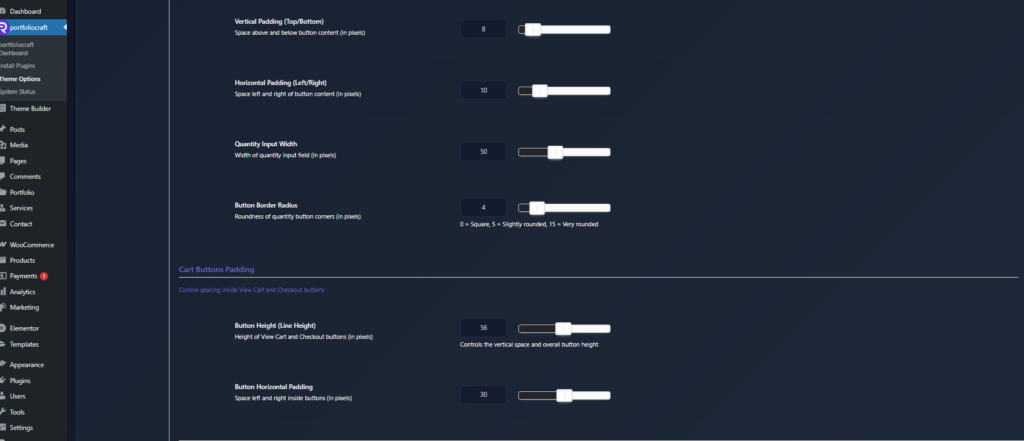
Quantity controls spacing #
Fine‑tune the appearance of the quantity +/- buttons.
- Vertical Padding (Top/Bottom) – Inner spacing above and below the button content.
- Horizontal Padding (Left/Right) – Inner spacing on the left and right.
- Quantity Input Width – Width of the numeric quantity field.
- Button Border Radius – Corner roundness of quantity buttons (0 = square, 5 = slightly rounded, 15 = pill‑style).
Cart buttons spacing #
Adjust View Cart and Checkout button sizing.
- Button Height (Line Height) – Controls the vertical size/height of the buttons.
- Button Horizontal Padding – Inner left/right padding, affecting button width.
- Button Border Radius – Corner roundness (0 = square, 6 = normal, 20 = very rounded).
- Button Font Size – Text size inside the cart buttons in pixels.
Notifications (toast messages) #
Control small popup messages when items are added or removed.
- Enable Notifications
Shows toast messages for add/remove actions. - Notification Position
Where notifications appear:- Top Right / Top Left
- Bottom Right / Bottom Left
- Top Center / Bottom Center
- Notification Duration
How long the toast stays visible (ms), for example:- 3000 = 3 seconds
- 5000 = 5 seconds
- Notification Max Width
Maximum width of each notification box in pixels. - Notification Padding
Inner spacing inside the notification box. - Notification Border Radius
Corner roundness of notification boxes. - Notification Font Size
Text size for notification content. - Animation Speed (ms)
Speed of the slide‑in/slide‑out animation for notifications. - Success Message Border Color
Left border color for success notifications (e.g. green accent). - Error Message Border Color
Left border color for error notifications (e.g. red accent). - Notification Background Color
Background color of the toast box. - Notification Text Color
Text color inside notifications. - Notification Shadow
Visual shadow style: Light, Medium, Heavy, or No Shadow. - Notification Offset from Edge
Distance in pixels between the notification and the screen edge (top, bottom, or sides depending on position).
These settings together let you build a fully branded, UX‑optimized AJAX cart sidebar that works smoothly on both desktop and mobile, boosts clarity, and can help increase conversions.