
Skip to content

Need Support?

Discover Themes

Need Support?

Discover Themes

Need Support?

Discover Themes

Getting Started

7
  • Theme Updates
  • Installing Required Plugins
  • Install Using FTP
  • Theme Installation & Activation
  • What We Offer (Downloaded Packages)
  • WordPress Installation
  • Server Requirements

Site Setup

4
  • Turn on Coming Soon / Maintenance Mode (Elementor)
  • Adding Coustom 404 Page
  • Customizing Your Menu
  • Adding a Favicon to your Site

Theme Options

9
  • Content Management
  • SEO Management
  • Cache Management
  • Back To Top
  • Typography & Custom Fonts
  • Back To Top (Scroll to Top Button)
  • Cursor / Mouse Movement Animation
  • Change Global Color
  • Enable Dark or Light Mode in Rakmyat Themes

Theme Builder

5
  • Mega Menu 
  • Adding Coustom 404 Page
  • Template Builder
  • Footer 
  • Header Template

Portfolio

4
  • Creating a Single Portfolio Item
  • Creating a Portfolio Archive Page
  • Portfolio Display Name
  • Change Portfolio Slug

Services

4
  • Services Display Name
  •  Creating a Single Service
  •  Creating a Services Archive Page
  • Change Services Slug

How to

5
  • How to Give Access to Your WordPress Website
  • Change Global Color
  • Enable Dark or Light Mode in Rakmyat Themes
  • Adding Coustom 404 Page
  • Turn on Coming Soon / Maintenance Mode (Elementor)

Troubleshooting

5
  • Elementor Not Loading – Troubleshooting Guide
  • Demo Import Failed to Import in WordPress Theme
  • How to Fix the “Critical Error on Your Website”
  • WPML Not Detecting Custom Post Types
  • System Status

Demo Import

4
  • Demo Import Failed to Import in WordPress Theme
  • Manual Demo Import (OCDI + Elementor)
  • Importing Demo Locally from Theme Folder
  • Importing Demo (Default Method via Server HTTP Request)

Full Site Editing

7
  • Adding Coustom 404 Page
  •  Creating a Services Archive Page
  •  Creating a Single Service
  • Creating a Portfolio Archive Page
  • Creating a Single Portfolio Item
  • Footer 
  • Header Template
View Categories
  • Home
  • Docs
  • Full Site Editing
  • Creating a Single Portfolio Item

Creating a Single Portfolio Item

2 min read

Single portfolio items in Rakmyat Themes are created from the Portfolio post type in WordPress. Each item you add there will automatically use the single portfolio template from the Theme Builder.

1. Add a new portfolio item #

  1. Log in to WordPress admin.
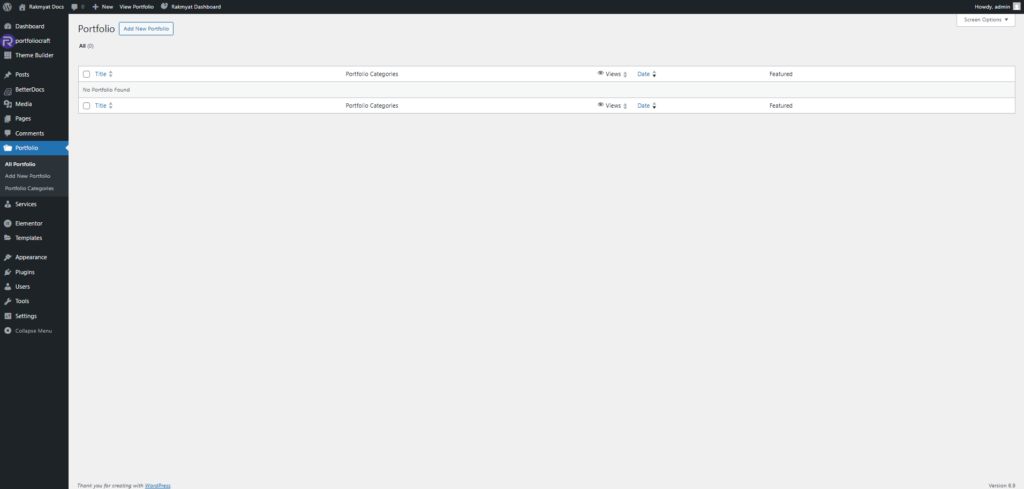
  2. In the left menu, click Portfolio → Add New Portfolio.
  3. Enter a Title for the project (this becomes the project name on the site).
  4. In the main editor area, add your project description:
    • Short overview of the client and goals.
    • Key results or highlights.
    • Any extra details you want to show in the single page content area.

2. Set portfolio details #

In the right sidebar and meta boxes below the editor you can set:

  • Featured Image: main image or mockup for the project. This is used in grids, archive pages, and at the top of the single page, depending on the template.
  • Portfolio Categories: choose an existing category or create a new one (for example: Branding, Web Design, Marketing Campaigns). Categories are used for filtering on the portfolio archive page.
  • Any extra fields added by Rakmyat Core (if present), such as client name, project date, services, or external URL.

Fill these fields so the single portfolio template can display rich information
3. Publish the portfolio item #

  1. When you are done adding content and images, click Publish in the top‑right box.
  2. Click View Portfolio or View Post to open the single portfolio page on the frontend.

The theme will automatically apply the Single Portfolio template from the Theme Builder to this item. You do not have to build each single portfolio page with Elementor; the template handles layout and styling for all portfolio items.

4. Where the single portfolio appears #

  • On the Portfolio Archive page (created in the Theme Builder) as a card or grid item.
  • In any Portfolio widgets or sections in Elementor that query portfolio posts.
  • Under the main portfolio URL with the slug you defined in Theme Options (for example: /portfolio/project-name/).

If you later edit the Single Portfolio template in the Theme Builder, all existing portfolio items will automatically use the updated design without needing to edit each one.

Updated on December 16, 2025

What are your Feelings

  • Happy
  • Normal
  • Sad

Share This Article :

  • Facebook
  • X
  • LinkedIn
  • Pinterest
Creating a Portfolio Archive Page Creating a Services Archive Page

Leave a Comment Cancel Reply

Your email address will not be published. Required fields are marked *

Table of Contents
  • 1. Add a new portfolio item
  • 2. Set portfolio details
  • 3. Publish the portfolio item
  • 4. Where the single portfolio appears

We design modern, performance‑focused WordPress themes that give you full control over your website – from visual identity to conversion‑driven layouts.

Helpful resources

  • Getting Started
  • How to
  • Site Setup
  • Theme Options
  • Theme Builder
  • Demo Import

Need help?

Our support team is here to assist with setup, customization questions, and technical issues. Open a support ticket any time and we’ll get back to you as soon as possible

Contact Us

Copyright © 2025 Rakmyat All Rights Reserved.